Libraries
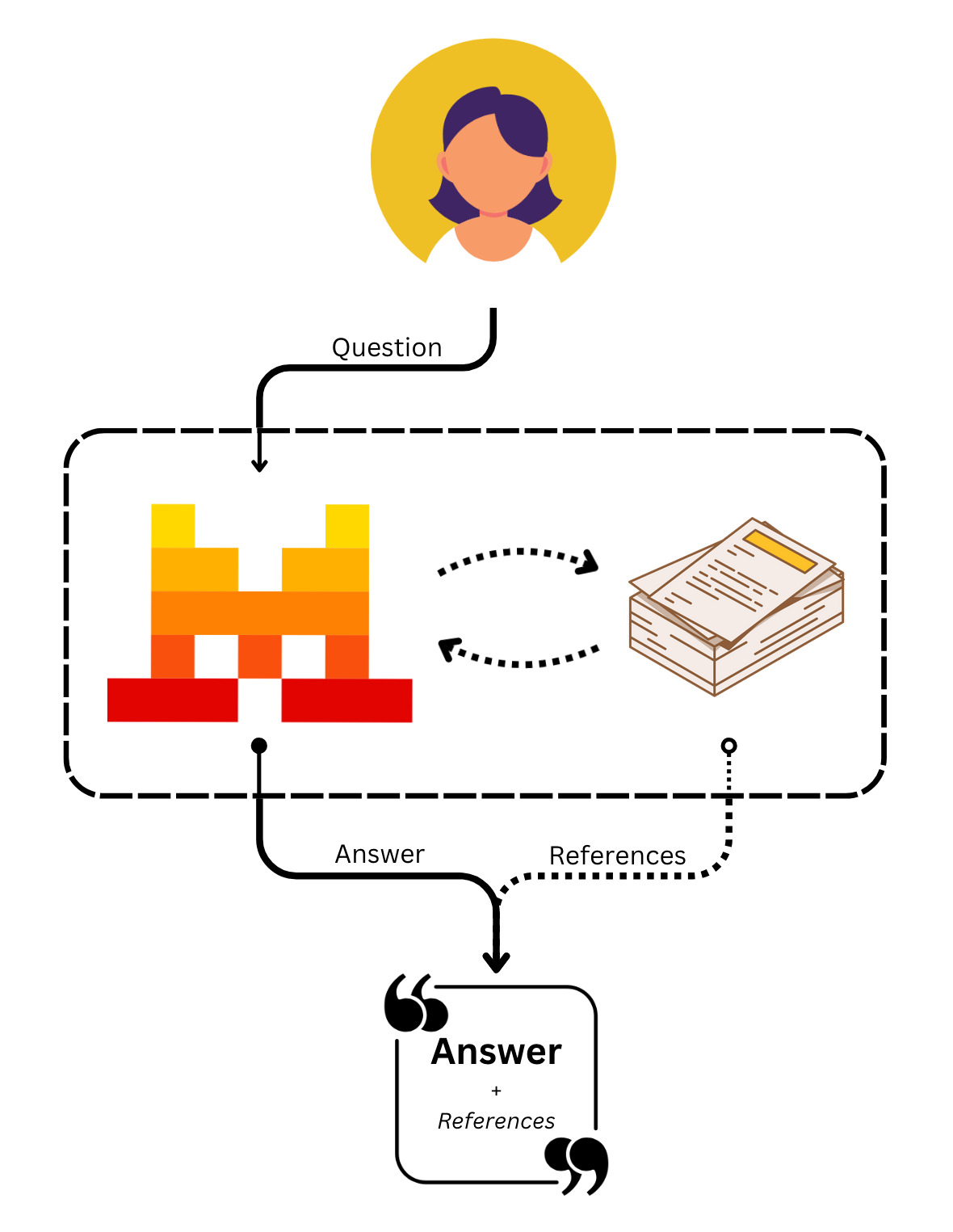
Libraries are persistent knowledge bases that you can fill with documents and connect to your agents for built-in retrieval-augmented generation (RAG). Upload PDFs, papers, or any document, and your agents can search through them on demand.
This page covers how to create Libraries, upload documents, index web pages, check processing status, and control access. To create a library and get a first grounded answer in about 10 minutes, follow the Libraries quickstart.
You can also use Libraries created in Vibe: the Library ID is visible in the URL (https://chat.mistral.ai/libraries/<library_id>). To let an agent access a Vibe Library, you need to be an Org admin and share it with the Organization. The reverse also works: create a Library via the API and share it with your team in Vibe.
Creating a Library
Create a new Library by providing a name and an optional description.
new_library = client.beta.libraries.create(name="Mistral Models", description="A simple library with information about Mistral models.")
{
  "id": "0197f425-5e85-7353-b8e7-e8b974b9c613",
  "name": "Mistral Models",
  "created_at": "2025-07-10T11:42:59.230268Z",
  "updated_at": "2025-07-10T11:42:59.230268Z",
  "owner_id": "6340e568-a546-4c41-9dee-1fbeb80493e1",
  "owner_type": "Workspace",
  "total_size": 0,
  "nb_documents": 0,
  "chunk_size": null,
  "emoji": null,
  "description": "A simple library with information about Mistral models.",
  "generated_name": null,
  "generated_description": null,
  "explicit_user_members_count": null,
  "explicit_workspace_members_count": null,
  "org_sharing_role": null
}
The response includes metadata like generated_name and generated_description — these are updated automatically as you add files.
A new Library starts empty. You can list its documents to confirm:
doc_list = client.beta.libraries.documents.list(library_id=new_library.id).data
for doc in doc_list:
    print(f"{doc.name}: {doc.extension} with {doc.number_of_pages} pages.")
    print(f"{doc.summary}")
Listing Libraries
List all Libraries in your Workspace along with their document counts.
libraries = client.beta.libraries.list().data
for library in libraries:
    print(library.name, f"with {library.nb_documents} documents.")
X's Library with 152 documents.
My new API library with 1 documents.
Mistral Documentation with 81 documents.
Y's PDFs  with 21 documents.
Papers with 2 documents.
Uploading documents
Upload a document by providing the Library ID and the file.
from mistralai.models import File

# Upload document
file_path = "mistral7b.pdf"
with open(file_path, "rb") as file_content:
    uploaded_doc = client.beta.libraries.documents.upload(
        library_id=new_library.id,
        file=File(fileName="mistral7b.pdf", content=file_content),
    )
{
  "id": "424fdcb8-3c11-478c-a651-9637be8b4fc4",
  "library_id": "0197f425-5e85-7353-b8e7-e8b974b9c613",
  "hash": "8ad11d7d6d3a9ce8a0870088ebbcdb00",
  "mime_type": "application/pdf",
  "extension": "pdf",
  "size": 3749788,
  "name": "mistral7b.pdf",
  "created_at": "2025-07-10T11:43:01.017430Z",
  "processing_status": "Running",
  "uploaded_by_id": "6340e568-a546-4c41-9dee-1fbeb80493e1",
  "uploaded_by_type": "Workspace",
  "tokens_processing_total": 0,
  "summary": null,
  "last_processed_at": null,
  "number_of_pages": null,
  "tokens_processing_main_content": null,
  "tokens_processing_summary": null
}
Listing documents
List documents in a specific Library:
if len(libraries) == 0:
    print("No libraries found.")
else:
    doc_list = client.beta.libraries.documents.list(library_id=libraries[0].id).data
    for doc in doc_list:
        print(f"{doc.name}: {doc.extension} with {doc.number_of_pages} pages.")
        print(f"{doc.summary}")
Document status
After uploading a document, you can check its processing status.
# Check status document
status = client.beta.libraries.documents.status(library_id=new_library.id, document_id=uploaded_doc.id)
print(status)

# Waiting for process to finish
import time
while status.processing_status == "Running":
    status = client.beta.libraries.documents.status(library_id=new_library.id, document_id=uploaded_doc.id)
    time.sleep(1)
print(status)
The status is Running while the document is being processed and Completed once it's ready.
{
  "document_id": "424fdcb8-3c11-478c-a651-9637be8b4fc4",
  "processing_status": "Running"
}
Getting document info
Retrieve full document metadata once processing is complete.
# Get document info once processed
uploaded_doc = client.beta.libraries.documents.get(library_id=new_library.id, document_id=uploaded_doc.id)
{
  "id": "424fdcb8-3c11-478c-a651-9637be8b4fc4",
  "library_id": "0197f425-5e85-7353-b8e7-e8b974b9c613",
  "hash": "8ad11d7d6d3a9ce8a0870088ebbcdb00",
  "mime_type": "application/pdf",
  "extension": "pdf",
  "size": 3749788,
  "name": "mistral7b.pdf",
  "created_at": "2025-07-10T11:43:01.017430Z",
  "processing_status": "Completed",
  "uploaded_by_id": "6340e568-a546-4c41-9dee-1fbeb80493e1",
  "uploaded_by_type": "Workspace",
  "tokens_processing_total": 17143,
  "summary": "Mistral 7B is a 7-billion-parameter language model that outperforms larger models like Llama 2 and Llama 1 in various benchmarks, including reasoning, mathematics, and code generation. It uses grouped-query attention (GQA) for faster inference and sliding window attention (SWA) to handle longer sequences efficiently. The model is released under the Apache 2.0 license and includes a fine-tuned instruction-following version, Mistral 7B - Instruct, which surpasses Llama 2 13B - Chat in performance. The document also details the model's architecture, results, and applications, including content moderation and guardrails for safe usage.",
  "last_processed_at": "2025-07-10T11:43:09.604284Z",
  "number_of_pages": 9,
  "tokens_processing_main_content": 8436,
  "tokens_processing_summary": 8707
}
Getting document content
Extract the text content from any document in a Library.
extracted_text = client.beta.libraries.documents.text_content(library_id=new_library.id, document_id=uploaded_doc.id)
# There is also extracted_text signed_url and raw signed_url
print(extracted_text)
Indexing a website
You can create a Library directly from a website using the focused web crawler. The crawler fetches text content from the seed URL and follows child links up to a configurable depth.
From Mistral Studio, document processing is billed on a pay-as-you-go basis, the same as when you use the Mistral API.
To index a website from Studio:
1.
Click Index a website.2.
Enter a Library Name and the Website URL to crawl.3.
Optionally click Advanced Settings to configure the crawl.4.
Click Start Indexing.
The crawler extracts text content only. Images and charts are not indexed. To include visual content, download the page and upload it as a file instead.
Advanced indexing settings
Setting | Description |
|---|---|
| Maximum Pages | Maximum number of pages to crawl from the seed URL. Range: 1-10000. |
| Maximum Depth | How many link hops from the seed URL to follow. Range: 1–10. Default: 10. |
| URL filter rules | Include or exclude rules that control which URLs are crawled. |
| Refresh Schedule | Automatic re-indexing frequency: None, Hourly, Daily, Weekly, or Monthly. |
| Browser-based fetching | Use a headless browser to render JavaScript-heavy pages before extracting content. Disabled by default. |
Deleting Libraries and documents
Delete Libraries or individual documents as needed.
deleted_library = client.beta.libraries.delete(library_id=new_library.id)
Controlling access
You can manage who has access to each Library. Access control uses these parameters:
- org_id — your organization ID.
- level — the access level: "Viewer" or "Editor".
- share_with_uuid — the ID of the entity you're sharing with (find these in your console and platform settings).
- share_with_type — the entity type: "User", "Workspace", or "Org".
A few rules:
- You must be the Library owner to share it.
- An owner can't delete their own access.
- You must be the Library owner to delete someone else's access.
- Viewers can't edit Libraries. Editors can.
Given a library, list all of the entities that have access and their access level.
accesses_list = client.beta.libraries.accesses.list(library_id=new_library.id)
For full API details, see the Libraries API reference.
Connecting Libraries to agents
Document Library is a built-in agent tool that lets agents search through your Libraries. To use it, create an agent with the document_library tool and pass the library_ids you want it to access.
library_agent = client.beta.agents.create(
    model="mistral-medium-latest",
    name="Document Library Agent",
    description="Agent used to access documents from the document library.",
    instructions="Use the  library tool to access external documents.",
    tools=[{"type": "document_library", "library_ids": [new_library.id]}],
    completion_args={
        "temperature": 0.3,
        "top_p": 0.95,
    }
)
{
  "model": "mistral-medium-latest",
  "name": "Document Library Agent",
  "description": "Agent used to access documents from the document library.",
  "id": "ag_06835bb196f9720680004fb1873efbae",
  "version": 0,
  "created_at": "2025-05-27T13:16:09.438785Z",
  "updated_at": "2025-05-27T13:16:09.438787Z",
  "instructions": "Use the library tool to access external documents.",
  "tools": [
    {
      "library_ids": [
        "06835a9c-262c-7e83-8000-594d29fe2948"
      ],
      "type": "document_library"
    }
  ],
  "completion_args": {
    "stop": null,
    "presence_penalty": null,
    "frequency_penalty": null,
    "temperature": 0.3,
    "top_p": 0.95,
    "max_tokens": null,
    "random_seed": null,
    "prediction": null,
    "response_format": null,
    "tool_choice": "auto"
  },
  "handoffs": null,
  "object": "agent"
}
When you create an agent, the response includes an agent ID. Use it to start a conversation.
Conversations with a Document Library agent
Once your agent is ready, you can query your Library at any point:
response = client.beta.conversations.start(
    agent_id=library_agent.id,
    inputs="How does the vision encoder for pixtral 12b work"
)
{
  "conversation_id": "conv_06835bb1996079898000435d8a0b1afd",
  "outputs": [
    {
      "type": "tool.execution",
      "name": "document_library",
      "object": "entry",
      "created_at": "2025-05-27T13:16:09.974925Z",
      "completed_at": "2025-05-27T13:16:10.855373Z",
      "id": "tool_exec_06835bb19f99716580001de8ab64d953"
    },
    {
      "type": "message.output",
      "content": [
        {
          "type": "text",
          "text": "The vision encoder for Pixtral 12B, known as PixtralViT, is designed to process images at their natural resolution and aspect ratio. Here are the key details about how it works:\n\n1. **Architecture**: PixtralViT is a vision transformer with 400 million parameters. It is trained from scratch to support variable image sizes and aspect ratios, which is a significant departure from standard architectures that often require fixed image sizes.\n\n2. **Key Modifications**:\n   - **Break Tokens**: To help the model distinguish between images with the same number of patches but different aspect ratios, special tokens like [IMAGE BREAK] are inserted between image rows, and an [IMAGE END] token is added at the end of an image sequence.\n   - **Gating in FFN**: Instead of using a standard feedforward layer in the attention block, PixtralViT employs gating in the hidden layer, which enhances its performance.\n   - **Sequence Packing**: Images are flattened along the sequence dimension and concatenated to process multiple images efficiently within a single batch. A block-diagonal mask ensures no attention leakage between patches from different images.\n   - **RoPE-2D**: Traditional position embeddings are replaced with relative, rotary position encodings (RoPE-2D) in the self-attention layers. This allows the model to handle variable image sizes more effectively without the need for interpolation, which can degrade performance.\n\n3. **Integration with Multimodal Decoder**: The vision encoder is linked to the multimodal decoder via a two-layer fully connected network. This network transforms the output of the vision encoder into the input embedding size required by the decoder. The image tokens are treated similarly to text tokens by the multimodal decoder, which uses RoPE-1D positional encodings for all tokens.\n\n4. **Performance**: The Pixtral vision encoder significantly outperforms other models in tasks requiring fine-grained document understanding while maintaining parity for natural images. It is particularly effective in settings that require detailed visual comprehension, such as chart and document understanding.\n\nThese architectural choices and modifications enable Pixtral 12B to flexibly process images at various resolutions and aspect ratios, making it highly versatile for complex multimodal applications."
        }
      ],
      "object": "entry",
      "created_at": "2025-05-27T13:16:11.239496Z",
      "completed_at": "2025-05-27T13:16:17.211241Z",
      "id": "msg_06835bb1b3d47ca580001b213d836798",
      "agent_id": "ag_06835bb196f9720680004fb1873efbae",
      "model": "mistral-medium-latest",
      "role": "assistant"
    }
  ],
  "usage": {
    "prompt_tokens": 196,
    "completion_tokens": 485,
    "total_tokens": 3846,
    "connector_tokens": 3165,
    "connectors": {
      "document_library": 1
    }
  },
  "object": "conversation.response"
}
Understanding the response
The response contains two types of entries:
-
tool.execution — the Document Library tool ran a search. Includes name, timestamps (created_at, completed_at), and a unique id.
-
message.output — the agent's answer, grounded in the documents it found. The content field is a list of chunks that can be text (the actual response) or tool_reference (citations pointing back to source documents). Citations are useful for verifiable, traceable outputs.
The usage object shows token counts, including connector_tokens consumed by the Library search.
The web search tool also uses references. For more on citations, see the citations guide.
Going further
Embeddings
Generate vector embeddings for custom RAG pipelines.
Agent tools
Explore other built-in tools like web search, Code Interpreter, and image generation.