Voice agents
Voice agents hold real-time, two-way voice conversations. The Voice Agents SDK runs the whole pipeline for you: it captures the user's voice, transcribes it, generates an answer with a model, speaks the answer, and plays it back. You write the application around it: what the agent knows, which tools it can call, and what happens when a call ends. Users can interrupt the agent mid-sentence, and the agent can search the web, query your document libraries, call your workspace connectors, or run your own functions.
How it works
Every turn of the conversation goes through the same stages. The models run at Mistral, and your application captures and plays the audio.
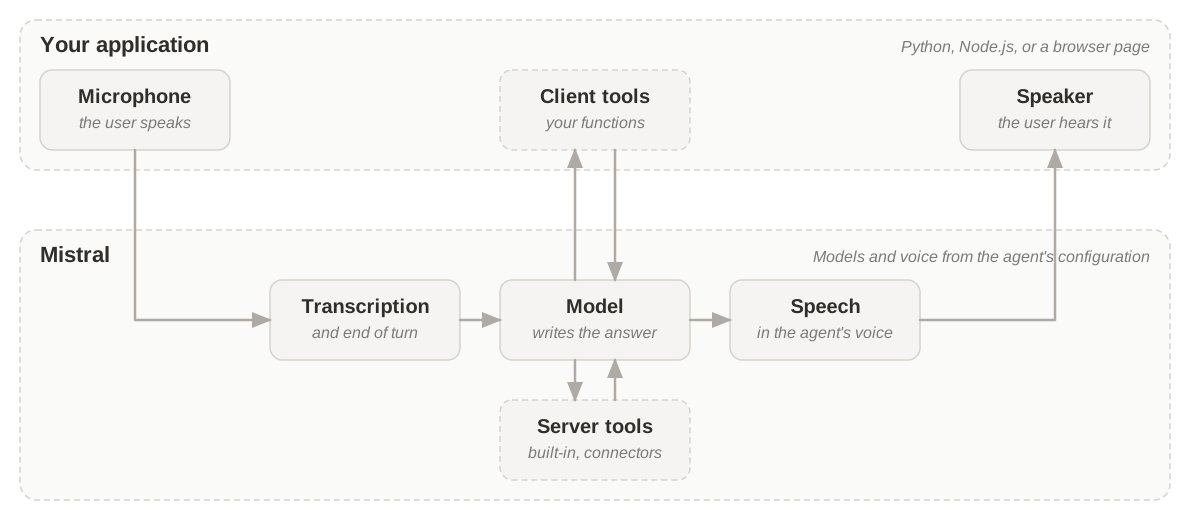
Each stage has one job:
| Stage | What it does | Learn more |
|---|---|---|
| Transcription | Turns the user's speech into text as they talk, and detects when they've finished their turn. | Turns and turn-taking |
| Model | Reads the conversation and writes the answer. When it needs data or an action, it calls a tool: server-side tools run at Mistral, client-side tools run your own functions in your application. | Tools |
| Speech | Speaks the answer in the agent's voice. | Voices |
The stages form a chain, so each one adds to the time the user waits for a reply: see Latency. The user can also talk over the agent while it speaks, see Interruptions in voice agents.
On a phone line, the caller's phone takes the place of the microphone and the speaker, and no code of yours runs in the call: client-side tools fail there, so use server-side tools for anything a phone agent needs.
Agents and sessions
The agent is what you configure, and the session is one conversation that runs it. They don't last as long and don't hold the same things:
| Agent | Session | |
|---|---|---|
| What it is | A saved, versioned configuration | One live conversation |
| Lasts | Until you delete it | From the moment it connects until your application closes it or a fatal error ends it |
| Holds | How the agent behaves: instructions, models, voice, tool declarations, welcome message, and whether the user can interrupt | What's specific to this conversation: the audio interface, the handlers of your client-side tools, and any option you override |
| How many | One per use, such as a support line | One per conversation, started from a saved agent or from a configuration you pass when you connect |
| To change it | Create a new version | Override agent options when you connect, for this session only |
When to save an agent
A session can run without a saved agent: you pass the whole configuration when you connect, which is the quickest way to try things. Save it as an agent once the configuration should outlive one script:
- Reuse it everywhere. Sessions from the SDK, from a browser, and from a phone line start from the same agent and behave the same way.
- Change it safely. Each change creates a new version. Sessions start from the latest version by default, and you can pin one to keep a known configuration in production while you try the next. See Versions.
- Attach phone numbers and webhooks.
When a session starts from a saved agent, the options you pass override the saved ones for that session only, and the agent doesn't change. See Inline or saved configuration.
How a session unfolds
A session goes through three phases, and your application follows each one through session events:
| Phase | What happens | What your application gets |
|---|---|---|
| Start | Your application opens the session, or your server does for a browser page. The agent can greet the user with its welcome message. | A connection event |
| Conversation | The user and the agent take turns: the agent listens, thinks, speaks, and calls tools when it needs them. | Transcripts, changes of agent state, and tool calls |
| End | Your application closes the session, or a fatal error ends it. | A disconnection event, with the reason when it isn't a normal close |
Session events reach the code that runs the session, while the conversation goes on: use them to update your interface. Webhooks reach your backend when a call starts, ends, or fails: use them as the record of each call, for example to store the transcript. For the event list, see Manage agent sessions. For the agent states and interruptions, see Turns and turn-taking.
The SDK builds on LiveKit for the real-time audio transport, and adds the Python and TypeScript bindings and the bridge to Mistral models. You don't need to know LiveKit to use it.
Choose your path
| You want | Build with | What to know |
|---|---|---|
| An agent that runs on your machine or server | The SDK in Python or Node.js | The SDK manages the whole pipeline and uses the machine's microphone and speakers. Start with the quickstart. |
| Voice in a web app | The SDK in the browser (TypeScript) | Your server creates the session so the API key never reaches the browser, then the page connects with the credentials it returns. See the Browser guide. |
| An agent that answers phone calls | Telephony (SIP) | Available to enterprise customers at launch, through your account team. See Telephony. |
| Full control over every stage | Your own pipeline: realtime transcription, a chat model, and streamed speech | You own the transport, the latency, and turn handling. |
Use the SDK when you want capture, transcription, the model, speech, and playback handled end to end. Build your own pipeline when you need to control each stage separately, for example to change how turns are detected or where audio is processed.
Tools
You choose the model for each stage per agent or per session, see Agent configuration. Tools let the agent act during the conversation: built-in web search, document libraries, and workspace connectors run on Mistral's side, and your own functions run in your code. A short spoken filler covers the wait while a tool runs, see Tools. For production, signed webhooks notify your backend when a call starts, ends, or fails.
Common issues
| Symptom | Fix |
|---|---|
| The SDK installs but no audio is captured or played | Install the native audio tools: PortAudio for Python, SoX and FFmpeg for Node.js. See Install the SDK. |
A livekit::rtc_engine warning about a closed data channel appears when the session opens or closes | Nothing to fix: it's a harmless LiveKit warning, not an error in your session. |