Document AI - OCR Processor
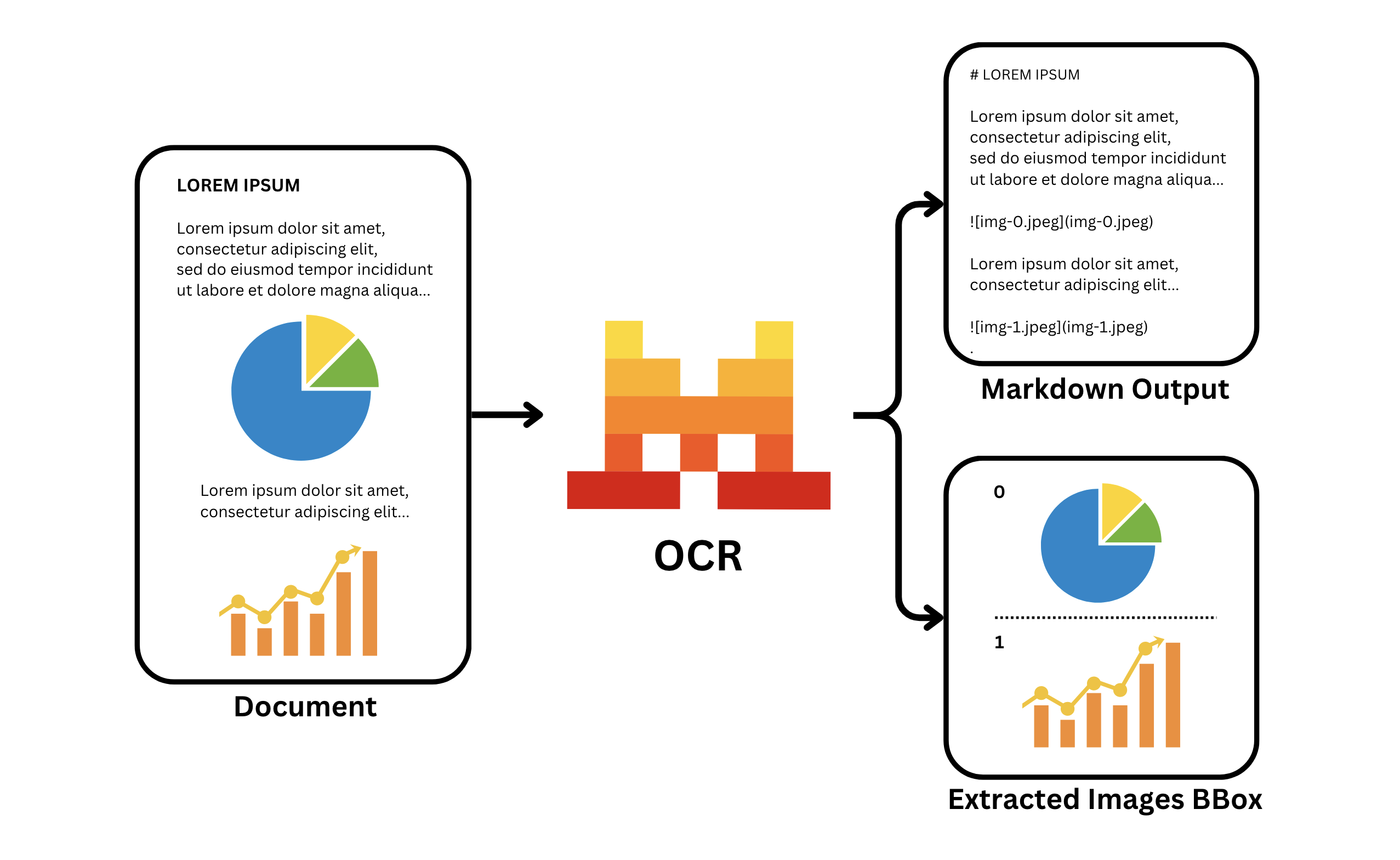
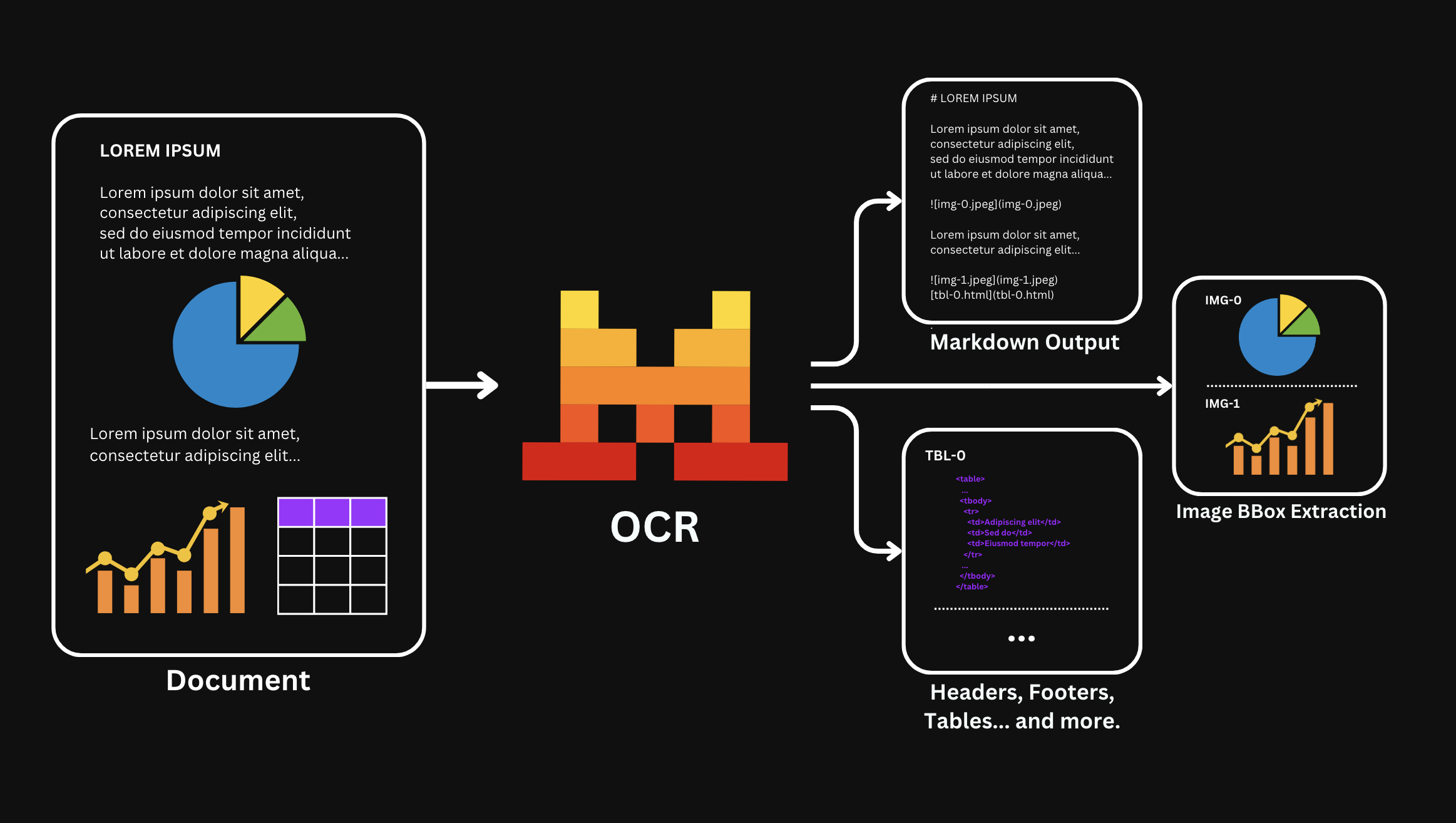
Mistral Document AI API comes with a Document OCR (Optical Character Recognition) processor, powered by our latest OCR model mistral-ocr-latest, which enables you to extract text and structured content from PDF documents.
Before You Start
Key Features
- Extracts text in content while maintaining document structure and hierarchy.
- Preserves formatting like headers, paragraphs, lists and tables.
- Table formatting can be toggled between
null,markdownandhtmlvia thetable_formatparameter.null: Tables are returned inline as markdown within the extracted page.markdown: Tables are returned as markdown tables separately.html: Tables are returned as html tables separately.
- Table formatting can be toggled between
- Option to extract headers and footers via the
extract_headerand theextract_footerparameter, when used, the headers and footers content will be provided in theheaderandfooterfields. By default, headers and footers are considered as part of the main content output. - Returns results in markdown format for easy parsing and rendering.
- Handles complex layouts including multi-column text and mixed content and returns hyperlinks when available.
- Provides confidence scores for extracted content at word or page granularity via the
confidence_scores_granularityparameter. - Processes documents at scale with high accuracy
- Supports multiple document formats including:
image_url: png, jpeg/jpg, avif and more...document_url: pdf, pptx, docx and more...- For a non-exaustive more comprehensive list, visit our FAQ.
Learn more about our API here.
Table formatting as well as header and footer extraction is only available for OCR 2512 or newer.
The OCR processor returns the extracted text content, images bboxes and metadata about the document structure, making it easy to work with the recognized content programmatically.
OCR with Images and PDFs
OCR your Documents
We provide different methods to OCR your documents. You can either OCR a PDF or an Image.
PDFs
Among the PDF methods, you can use a public available URL, a base64 encoded PDF or by uploading a PDF in our Cloud.
Be sure the URL is public and accessible by our API.
import os
from mistralai.client import Mistral

api_key = os.environ["MISTRAL_API_KEY"]

client = Mistral(api_key=api_key)

ocr_response = client.ocr.process(
    model="mistral-ocr-latest",
    document={
        "type": "document_url",
        "document_url": "https://arxiv.org/pdf/2201.04234"
    },
    table_format="html", # default is None
    # extract_header=True, # default is False
    # extract_footer=True, # default is False
    include_image_base64=True
)The output will be a JSON object containing the extracted text content, images bboxes, metadata and other information about the document structure.
{
  "pages": [ # The content of each page
    {
      "index": int, # The index of the corresponding page
      "markdown": str, # The main output and raw markdown content
      "images": list, # Image information when images are extracted
      "tables": list, # Table information when using `table_format=html` or `table_format=markdown`
      "hyperlinks": list, # Hyperlinks detected
      "header": str|null, # Header content when using `extract_header=True`
      "footer": str|null, # Footer content when using `extract_footer=True`
      "dimensions": dict, # The dimensions of the page
      "confidence_scores": dict|null # Confidence scores when `confidence_scores_granularity` is set (contains `average_page_confidence_score`, `minimum_page_confidence_score`, and `word_confidence_scores` for word granularity)
    }
  ],
  "model": str, # The model used for the OCR
  "document_annotation": dict|null, # Document annotation information when used, visit the Annotations documentation for more information
  "usage_info": dict # Usage information
}When extracting images and tables they will be replaced with placeholders, such as:
[tbl-3.html](tbl-3.html)
You can map them to the actual images and tables by using the images and tables fields.
Images
To perform OCR on an image, you can either pass a URL to the image or directly use a Base64 encoded image.
You can perform OCR with any public available image as long as a direct url is available.
import os
from mistralai.client import Mistral
api_key = os.environ["MISTRAL_API_KEY"]
client = Mistral(api_key=api_key)
ocr_response = client.ocr.process(
model="mistral-ocr-latest",
document={
"type": "image_url",
"image_url": "https://raw.githubusercontent.com/mistralai/cookbook/refs/heads/main/mistral/ocr/receipt.png"
},
# table_format=None,
include_image_base64=True
)The output will be a JSON object containing the extracted text content, images bboxes, metadata and other information about the document structure.
{
  "pages": [ # The content of each page
    {
      "index": int, # The index of the corresponding page
      "markdown": str, # The main output and raw markdown content
      "images": list, # Image information when images are extracted
      "tables": list, # Table information when using `table_format=html` or `table_format=markdown`
      "hyperlinks": list, # Hyperlinks detected
      "header": str|null, # Header content when using `extract_header=True`
      "footer": str|null, # Footer content when using `extract_footer=True`
      "dimensions": dict, # The dimensions of the page
      "confidence_scores": dict|null # Confidence scores when `confidence_scores_granularity` is set (contains `average_page_confidence_score`, `minimum_page_confidence_score`, and `word_confidence_scores` for word granularity)
    }
  ],
  "model": str, # The model used for the OCR
  "document_annotation": dict|null, # Document annotation information when used, visit the Annotations documentation for more information
  "usage_info": dict # Usage information
}When extracting images and tables they will be replaced with placeholders, such as:
[tbl-3.html](tbl-3.html)
You can map them to the actual images and tables by using the images and tables fields.
Confidence Scores
Extract Confidence Scores
The OCR processor can return confidence scores for extracted content to help you assess recognition quality. Use the confidence_scores_granularity parameter to control the level of detail:
| Value | Description |
|---|---|
"page" | Returns a confidence_scores object on each page with aggregate statistics (average_page_confidence_score, minimum_page_confidence_score). |
"word" | Returns everything from "page", plus a word_confidence_scores array with per-word confidence values on each page and each table entry. |
import os
from mistralai.client import Mistral

api_key = os.environ["MISTRAL_API_KEY"]

client = Mistral(api_key=api_key)

ocr_response = client.ocr.process(
    model="mistral-ocr-latest",
    document={
        "type": "document_url",
        "document_url": "https://arxiv.org/pdf/2201.04234"
    },
    confidence_scores_granularity="word"  # or "page" for aggregate only
)OCR at Scale
When performing OCR at scale, we recommend using our Batch Inference service, this allows you to process large amounts of documents in parallel while being more cost-effective than using the OCR API directly. We also support Annotations for structured outputs and other features.
Cookbooks
For more information and guides on how to make use of OCR, we have the following cookbooks: