Tool UI
Render rich, interactive UI components in the Vibe Work chat interface and visualize tool execution with structured status feedback. Use UI components for layout and visualization; use tool UI states to surface what your tools are doing in real time.
Rich UI components
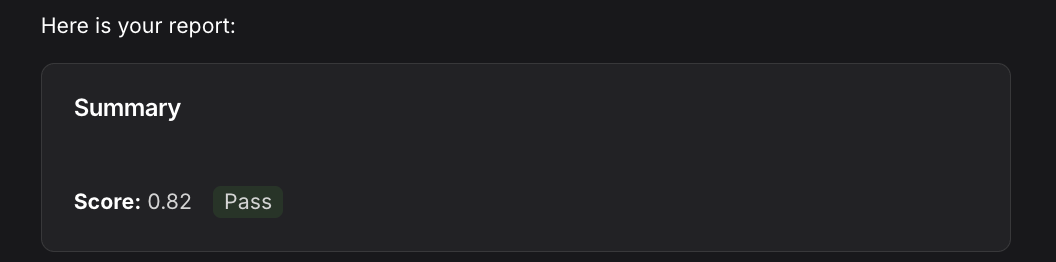
Workflows can render rich, interactive UI components in the Vibe Work chat interface using the design system component library. Components are defined as Python objects and sent as UIComponentResource resources.
Basic usage
import mistralai.workflows as workflows
import mistralai.workflows.plugins.mistralai as workflows_mistralai
from mistralai.workflows.plugins.mistralai.conversational_ui_components import (
    Badge,
    Card,
    Column,
    Markdown,
    Row,
)


@workflows.workflow.define(
    name="report-workflow",
    workflow_display_name="Report",
    workflow_description="Generate a rich UI report",
)
class ReportWorkflow:
    @workflows.workflow.entrypoint
    async def run(self) -> workflows_mistralai.ChatAssistantWorkflowOutput:
        report = Card(
            title="Summary",
            children=[
                Row(
                    children=[
                        Markdown(content="**Score:** 0.82"),
                        Badge(variant="success", children="Pass"),
                    ],
                ),
            ],
        )

        await workflows_mistralai.send_assistant_message(
            [
                workflows_mistralai.TextOutput(text="Here is your report:"),
                workflows_mistralai.ResourceOutput(
                    resource=workflows_mistralai.UIComponentResource(component=report),
                ),
            ]
        )

        return workflows_mistralai.ChatAssistantWorkflowOutput(
            content=[
                workflows_mistralai.ResourceOutput(
                    resource=workflows_mistralai.UIComponentResource(component=report),
                ),
            ],
        )
Available components
All components are imported from mistralai.workflows.plugins.mistralai.conversational_ui_components.
| Component | Description | Key Props |
|---|---|---|
Alert | Important messages with severity levels | title, variant (info/warning/error/success), children |
Avatar | User avatar image | src, alt, text, size |
Badge | Small label for status indicators | variant (default/primary/success/warning/error), size, children |
ButtonLink | Link styled as a button | href, variant, size, external, children |
Card | Container with optional title and description | title, description, padding, children |
Chart | Line or bar chart | variant (line/bar), data, xAxis, yAxis, title |
Column | Vertical layout container | alignment, distribution, gap, children |
Image | Image display | src, alt, size |
Markdown | Markdown-formatted text | content |
PieChart | Pie chart with labeled segments | data, title |
Row | Horizontal layout container | alignment, distribution, gap, wrap, children |
Tooltip | Additional information on hover | trigger, children |
Nesting components
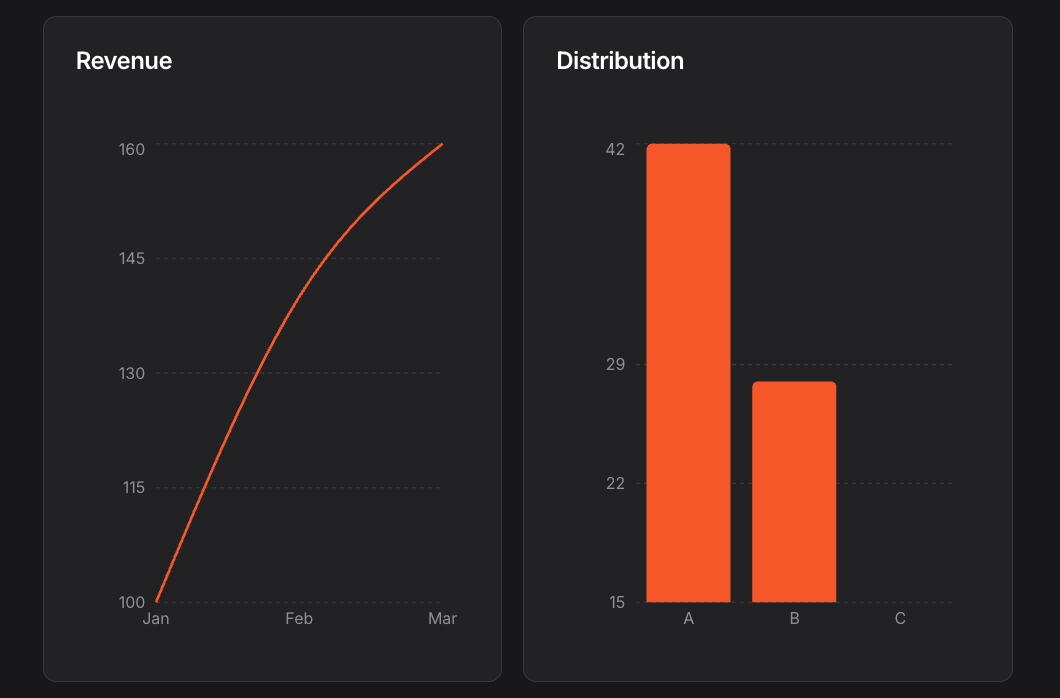
Components that accept children can contain other components, allowing you to build complex layouts:
from mistralai.workflows.plugins.mistralai.conversational_ui_components import (
    Card,
    Chart,
    Column,
    Row,
)

layout = Row(
    children=[
        Card(
            title="Revenue",
            children=[
                Chart(
                    variant="line",
                    xAxis="month",
                    yAxis=["actual", "target"],
                    data=[
                        {"month": "Jan", "actual": 100, "target": 120},
                        {"month": "Feb", "actual": 140, "target": 130},
                        {"month": "Mar", "actual": 160, "target": 140},
                    ],
                ),
            ],
        ),
        Card(
            title="Distribution",
            children=[
                Chart(
                    variant="bar",
                    xAxis="category",
                    yAxis="count",
                    data=[
                        {"category": "A", "count": 42},
                        {"category": "B", "count": 28},
                        {"category": "C", "count": 15},
                    ],
                ),
            ],
        ),
    ],
)
Tool UI states
Tool UI states provide optional visual representations of tool execution in the Vibe Work chat interface. When attached to ChatAssistantWorkingTask, they enable specialized UI feedback for different types of tool operations, allowing workflows to display the status and results of tool calls in a structured, user-friendly way.
Tool UI state types
There are three types of tool UI states:
File tool UI state
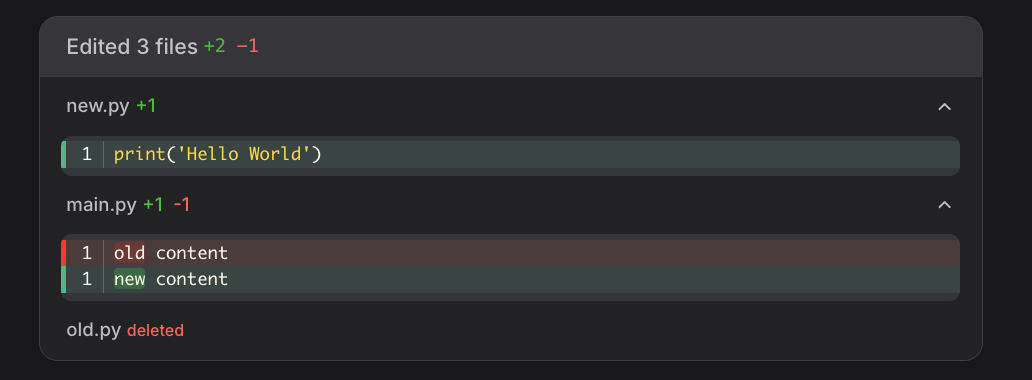
Represents file operations such as creating, replacing, or deleting files:
from mistralai.workflows.conversational import (
    FileToolUIState,
    CreateFileOperation,
    ReplaceFileOperation,
    DeleteFileOperation,
)

# Create a file
create_state = FileToolUIState(
    toolCallId="tc-1",
    operations=[
        CreateFileOperation(
            uri="file:///workspace/new.py",
            content="print('Hello World')"
        )
    ],
)

# Replace file content
replace_state = FileToolUIState(
    toolCallId="tc-2",
    operations=[
        ReplaceFileOperation(
            uri="file:///workspace/main.py",
            fileContentBefore="old content",
            blocks=[SearchReplaceBlock(search="old", replace="new")],
        )
    ],
)

# Delete a file
delete_state = FileToolUIState(
    toolCallId="tc-3",
    operations=[
        DeleteFileOperation(uri="file:///workspace/old.py")
    ],
)
Generic tool UI state
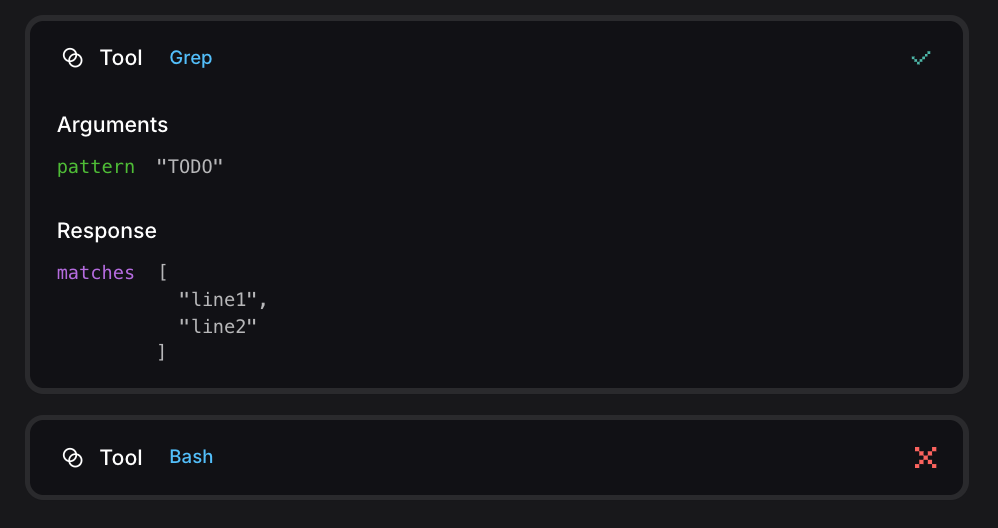
Represents generic tool execution with various status states:
from mistralai.workflows.conversational import (
    GenericToolUIState,
    ToolResultRunning,
    ToolResultSuccess,
    ToolResultFailed,
)

# Tool is running
running_state = GenericToolUIState(
    toolCallId="tc-1",
    name="bash",
    arguments={"command": "ls -la"},
    result=ToolResultRunning(),
)

# Tool completed successfully
success_state = GenericToolUIState(
    toolCallId="tc-2",
    name="grep",
    arguments={"pattern": "TODO"},
    result=ToolResultSuccess(value={"matches": ["line1", "line2"]}),
)

# Tool failed
failed_state = GenericToolUIState(
    toolCallId="tc-3",
    name="bash",
    arguments={"command": "false"},
    result=ToolResultFailed(error="exit code 1"),
)
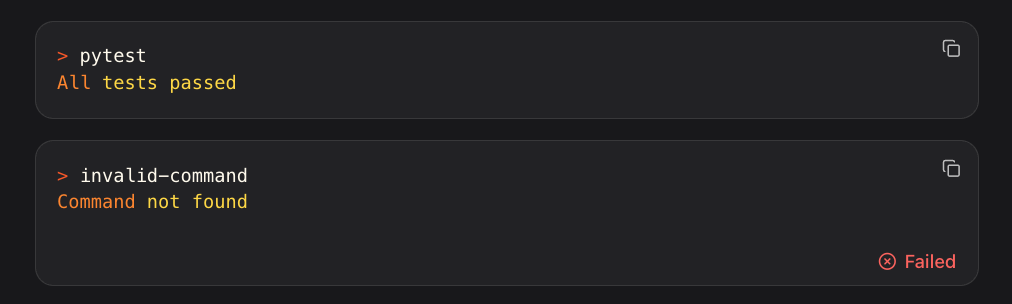
Command tool UI state
Represents command execution with running/success/failed states:
from mistralai.workflows.conversational import (
    CommandToolUIState,
    CommandResultRunning,
    CommandResultSuccess,
    CommandResultFailed,
)

# Command is running
running_state = CommandToolUIState(
    toolCallId="tc-1",
    command="npm install",
    result=CommandResultRunning(),
)

# Command completed successfully
success_state = CommandToolUIState(
    toolCallId="tc-2",
    command="pytest",
    result=CommandResultSuccess(output="All tests passed"),
)

# Command failed
failed_state = CommandToolUIState(
    toolCallId="tc-3",
    command="invalid-command",
    result=CommandResultFailed(error="Command not found"),
)
Using tool UI states in working tasks
Tool UI states can be attached to ChatAssistantWorkingTask to provide visual feedback during tool execution:
from mistralai.workflows.conversational import ChatAssistantWorkingTask

# Show a working task with file operations
task = ChatAssistantWorkingTask(
    title="Creating file",
    content="Generating new.py",
    toolUIState=FileToolUIState(
        toolCallId="tc-1",
        operations=[CreateFileOperation(uri="file:///workspace/new.py", content="print('hi')")],
    ),
)

# Show a working task with command execution
command_task = ChatAssistantWorkingTask(
    title="Running tests",
    content="Executing pytest",
    toolUIState=CommandToolUIState(
        toolCallId="tc-2",
        command="pytest",
        result=CommandResultRunning(),
    ),
)