Libraries
Libraries are persistent knowledge bases that you can fill with documents and connect to your agents for built-in retrieval-augmented generation (RAG). Upload PDFs, papers, or any document, and your agents can search through them on demand.
This page covers how to create Libraries, upload documents, check processing status, and control access — all through the API.
You can also use Libraries created in Vibe: the Library ID is visible in the URL (https://chat.mistral.ai/libraries/<library_id>). To let an agent access a Vibe Library, you need to be an Org admin and share it with the Organization. The reverse also works: create a Library via the API and share it with your team in Vibe.
Creating a Library
Create a new Library by providing a name and an optional description.
new_library = client.beta.libraries.create(name="Mistral Models", description="A simple library with information about Mistral models.")The response includes metadata like generated_name and generated_description — these are updated automatically as you add files.
A new Library starts empty. You can list its documents to confirm:
doc_list = client.beta.libraries.documents.list(library_id=new_library.id).data
for doc in doc_list:
    print(f"{doc.name}: {doc.extension} with {doc.number_of_pages} pages.")
print(f"{doc.summary}")Listing Libraries
List all Libraries in your Workspace along with their document counts.
libraries = client.beta.libraries.list().data
for library in libraries:
print(library.name, f"with {library.nb_documents} documents.")Uploading documents
Upload a document by providing the Library ID and the file.
from mistralai.client.models import File

# Upload document
file_path = "mistral7b.pdf"
with open(file_path, "rb") as file_content:
    uploaded_doc = client.beta.libraries.documents.upload(
        library_id=new_library.id,
        file=File(fileName="mistral7b.pdf", content=file_content),
)Listing documents
List documents in a specific Library:
if len(libraries) == 0:
    print("No libraries found.")
else:
    doc_list = client.beta.libraries.documents.list(library_id=libraries[0].id).data
    for doc in doc_list:
        print(f"{doc.name}: {doc.extension} with {doc.number_of_pages} pages.")
print(f"{doc.summary}")Document status
After uploading a document, you can check its processing status.
# Check status document
status = client.beta.libraries.documents.status(library_id=new_library.id, document_id=uploaded_doc.id)
print(status)

# Waiting for process to finish
import time
while status.processing_status == "Running":
    status = client.beta.libraries.documents.status(library_id=new_library.id, document_id=uploaded_doc.id)
    time.sleep(1)
print(status)The status is Running while the document is being processed and Completed once it's ready.
{
  "document_id": "424fdcb8-3c11-478c-a651-9637be8b4fc4",
  "processing_status": "Running"
}Getting document info
Retrieve full document metadata once processing is complete.
# Get document info once processed
uploaded_doc = client.beta.libraries.documents.get(library_id=new_library.id, document_id=uploaded_doc.id)Getting document content
Extract the text content from any document in a Library.
extracted_text = client.beta.libraries.documents.text_content(library_id=new_library.id, document_id=uploaded_doc.id)
# There is also extracted_text signed_url and raw signed_url
print(extracted_text)Deleting Libraries and documents
Delete Libraries or individual documents as needed.
deleted_library = client.beta.libraries.delete(library_id=new_library.id)Controlling access
You can manage who has access to each Library. Access control uses these parameters:
org_id— your organization ID.level— the access level:"Viewer"or"Editor".share_with_uuid— the ID of the entity you're sharing with (find these in your console and platform settings).share_with_type— the entity type:"User","Workspace", or"Org".
A few rules:
- You must be the Library owner to share it.
- An owner can't delete their own access.
- You must be the Library owner to delete someone else's access.
- Viewers can't edit Libraries. Editors can.
Given a library, list all of the entities that have access and their access level.
accesses_list = client.beta.libraries.accesses.list(library_id=new_library.id)For full API details, see the Libraries API reference.
Connecting Libraries to agents
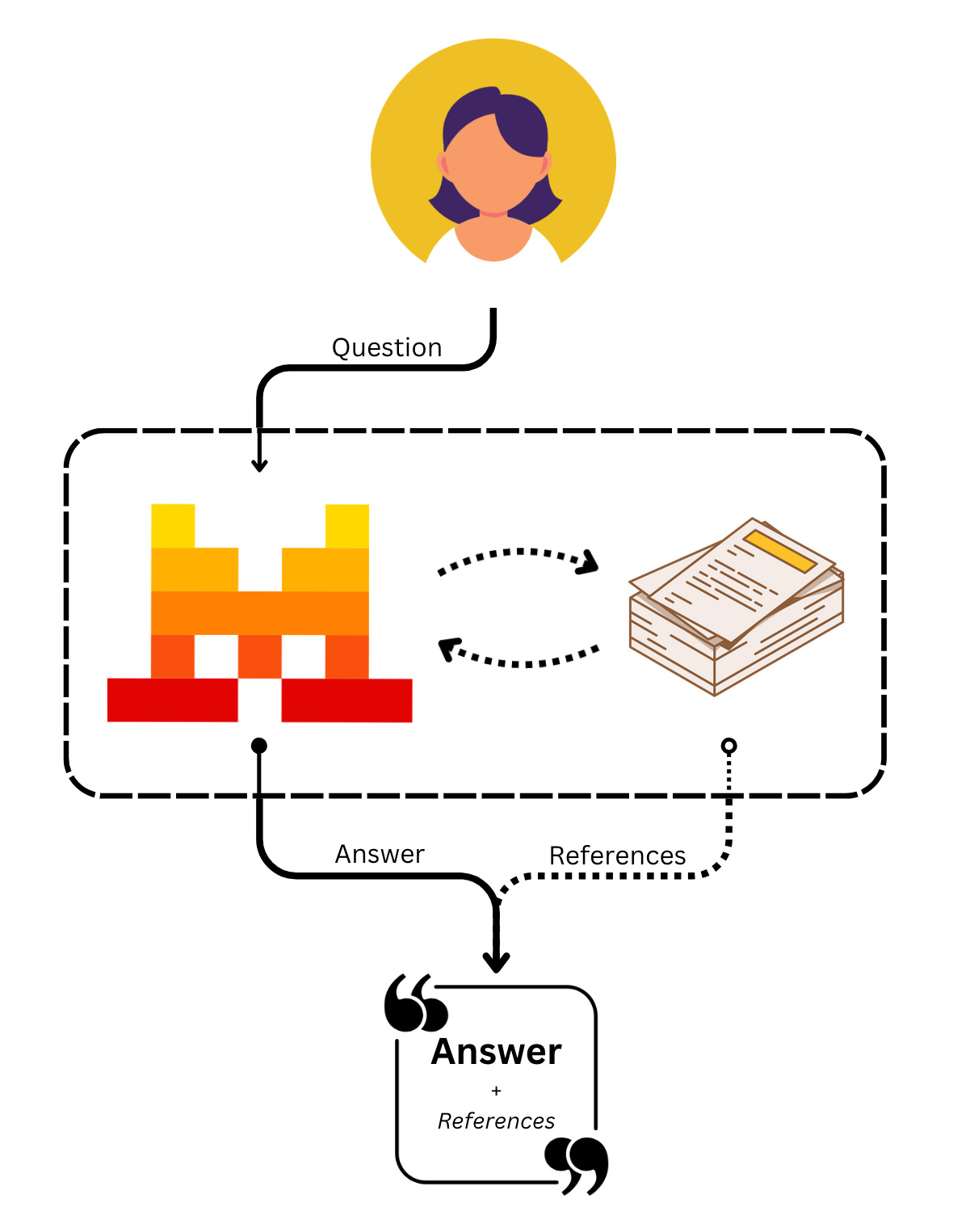
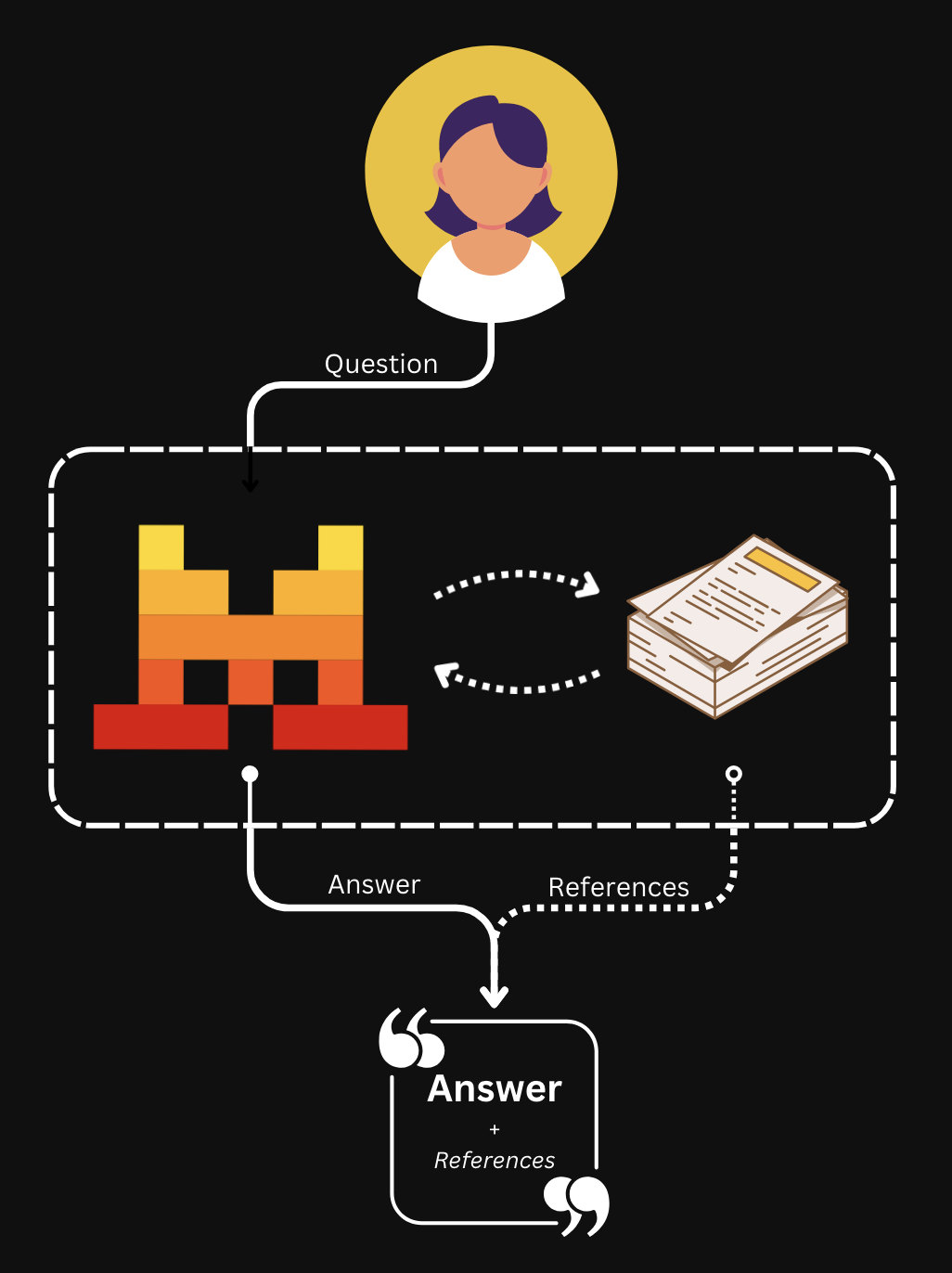
Document Library is a built-in agent tool that lets agents search through your Libraries. To use it, create an agent with the document_library tool and pass the library_ids you want it to access.
library_agent = client.beta.agents.create(
    model="mistral-medium-latest",
    name="Document Library Agent",
    description="Agent used to access documents from the document library.",
    instructions="Use the  library tool to access external documents.",
    tools=[{"type": "document_library", "library_ids": [new_library.id]}],
    completion_args={
        "temperature": 0.3,
        "top_p": 0.95,
    }
)When you create an agent, the response includes an agent ID. Use it to start a conversation.
Conversations with a Document Library agent
Once your agent is ready, you can query your Library at any point:
response = client.beta.conversations.start(
    agent_id=library_agent.id,
    inputs="How does the vision encoder for pixtral 12b work"
)Understanding the response
The response contains two types of entries:
-
tool.execution— the Document Library tool ran a search. Includesname, timestamps (created_at,completed_at), and a uniqueid. -
message.output— the agent's answer, grounded in the documents it found. Thecontentfield is a list of chunks that can betext(the actual response) ortool_reference(citations pointing back to source documents). Citations are useful for verifiable, traceable outputs.
The usage object shows token counts, including connector_tokens consumed by the Library search.
The web search tool also uses references. For more on citations, see the citations guide.
Going further
- RAG quickstart: build a retrieval-augmented generation pipeline from scratch.
- Embeddings: generate vector embeddings for custom RAG pipelines.
- Agent tools: explore other built-in tools like web search, Code Interpreter, and image generation.