Enterprise Accounts and Backoffice
Enterprise Accounts sit above Organizations. They let existing Organization admins create and manage linked Organizations from Backoffice.
Backoffice ↗ is where Enterprise Account admins manage the Enterprise Account layer. Admin Panel ↗ remains the place to administer one Organization.
How Enterprise Accounts fit into Admin
The Admin hierarchy has three layers:
- Enterprise Account: the top-level account that links one or more Organizations.
- Organization: the account that contains members, Workspaces, billing, access settings, and policies.
- Workspace: a shared environment inside an Organization for product usage, resources, access, and limits.
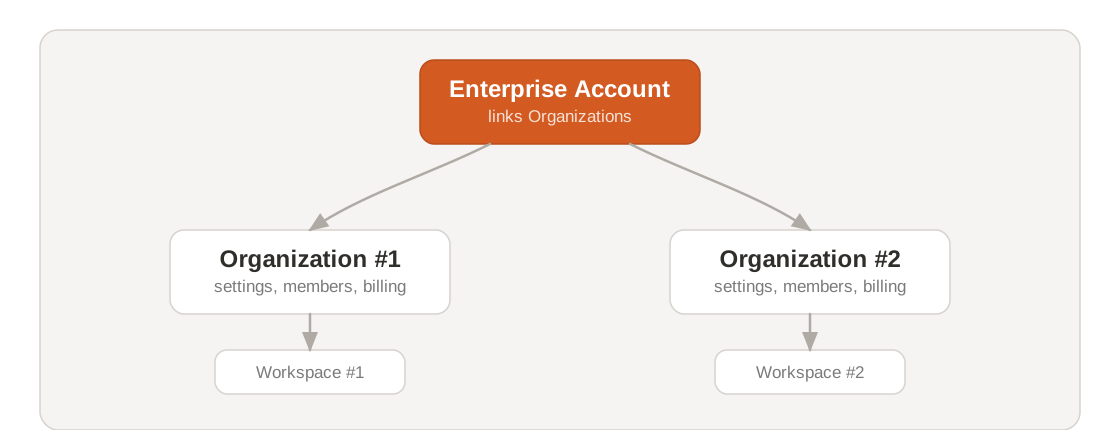
Backoffice manages the Enterprise Account and the Organizations under it. The Admin Panel manages one Organization at a time. Workspaces still organize teams, environments, products, and budgets inside one Organization.
When you need an Enterprise Account
Enterprise Accounts are available to admins of an existing linked Organization. Use them to generate Admin API keys, or when your company needs more than one Organization.
Backoffice and Admin API keys are available only on Enterprise plans. To get initial Backoffice access, contact your Mistral account team. A Mistral team member needs to create the first Enterprise Account for your company.
Create separate Organizations when different groups need their own:
- Organization settings;
- members and access model;
- Workspaces;
- Admin API keys;
- usage, billing, or operational boundaries.
You don't need multiple Organizations to access Backoffice. Enterprise Account access also doesn't replace Organization roles.
Manage an Enterprise Account
Use Backoffice to manage Enterprise Account members, linked Organizations, and Admin API keys from one place.
Open Backoffice
Open backoffice.mistral.ai ↗.
You need Enterprise Account admin access to use Backoffice. Existing Enterprise Account admins can add other existing Organization admins to the Enterprise Account.
If you try to add a user who is not an Organization admin in a linked Organization, the invitation fails.
The left navigation includes:
- Enterprise Account Members;
- Organizations;
- API Keys.
Manage members
Use Enterprise Account Members to review and manage people who can access the Enterprise Account in Backoffice. Enterprise Account members must already be admins of a linked Organization.
The member list shows:
- name and email;
- account ID;
- Organizations associated with the member;
- last login;
- available actions.
You can add a new member from this page. Pending invitations appear in the list with an Invite pending status.
Manage Organizations
Use Organizations to review the Organizations linked to the Enterprise Account. The list shows each Organization name, Organization ID, member count, and available actions.
You can create an Organization from this page.
Enterprise Account admins can see linked Organizations, but they cannot administer every linked Organization by default. Use Promote to admin to promote the current Enterprise Account admin to Organization admin on the selected Organization.
Manage Admin API keys
Use API Keys to create and review Admin API keys for the Organizations under the Enterprise Account.
Admin API keys are scoped to one Organization. A key can administer only the Organization selected when you create it. Admin API keys can have an expiration date or no expiration date.
The key list shows:
- key name;
- Organization;
- masked key value;
- creation date;
- last used date;
- expiration date;
- available actions.
To create an Admin API key:
- Open API Keys in Backoffice.
- Click Create Key.
- Enter a Name.
- Select the Organization the key belongs to.
- Optionally set an Expiration date.
- Create the key and copy it immediately.
The full Admin API key is only shown at creation. If you lose it, you'll need to create a new one.