Admin overview
The Admin Panel›Admin Panel ↗ is the control surface for your Organization. It brings together the main tools you need to set up your Organization, manage access, track usage, and automate administration.
Open Admin
You can open Admin in two ways:
- Go directly to Admin Panel›Admin Panel ↗.
- From Vibe or Studio, open the main menu and select
Admin.
You don't need to sign in again. Sessions are shared across Vibe, Studio, and the Admin Panel.
You need an Organization admin or Workspace admin role to access Admin. The pages and actions you can use depend on your role.
How Admin fits together
While teams use Vibe to work with Mistral models and coding tools, and Studio to build applications with Mistral APIs and services, Admin is where you manage the resources behind that work. It defines who can access Mistral products, how teams and Workspaces are organized, how usage is tracked, and which policies apply.
At its core, the Admin model is built around three concepts:
- Organization: your company's top-level account.
- Workspaces: separate areas used to organize teams, products, environments, or budgets.
- Members: the people who belong to that Organization.
Members belong to an Organization and gain access to one or more Workspaces through roles, groups, and provisioning rules.
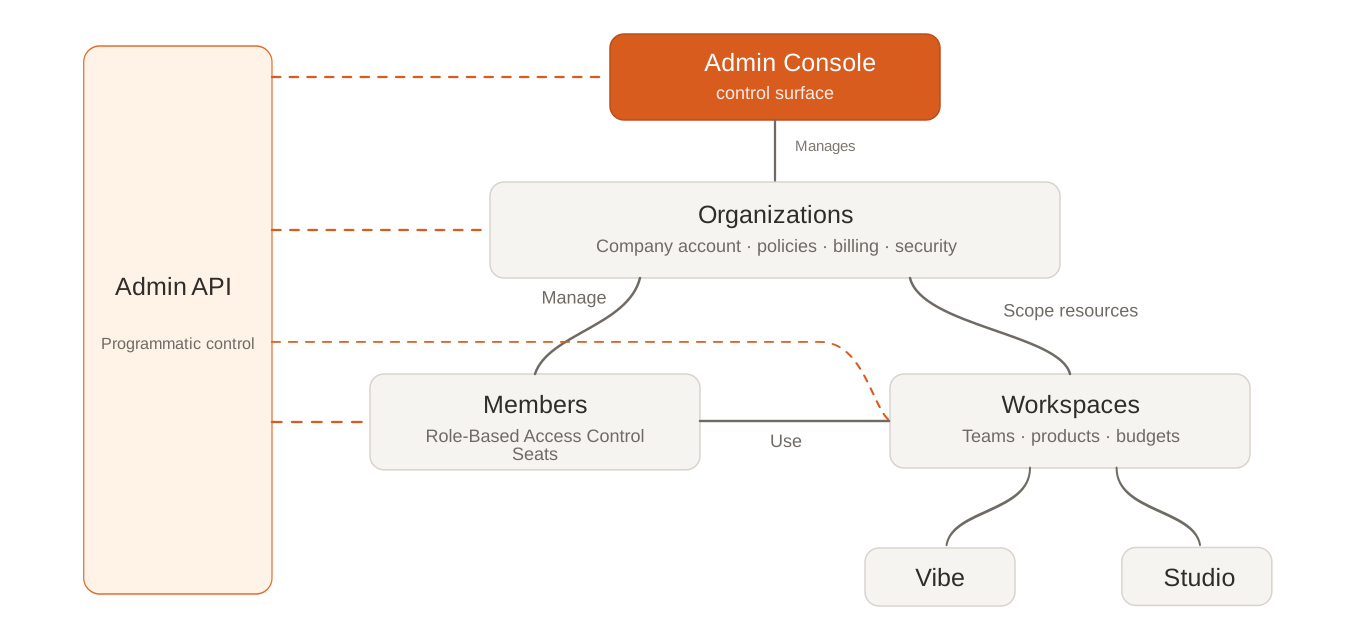
The Admin API controls the same model programmatically. If you're on an Enterprise or Team plan, you can use it to automate administration, including Organization management, member lifecycle operations, Workspace administration, and access workflows.
Organization-level settings
Organization-level settings apply across the whole Organization, such as access, billing, and compliance settings:
- Verify your domain before you configure sign-in methods.
- Configure SAML SSO if your Organization uses single sign-on.
- Manage subscriptions and billing.
- Review audit logs and privacy controls.
Members, roles, and groups
Members are the people in your Organization. Roles define what a member can view or change, and seats control access to paid products. For setup steps, see Manage identity and access (RBAC).
Use role-based access control (RBAC) to grant only the permissions that each person needs. Groups help you manage access for multiple members at once. System for Cross-domain Identity Management (SCIM) support will automate onboarding and offboarding when it becomes generally available.
Workspaces
Workspaces separate teams, products, environments, or business units inside the same Organization. Each Workspace can have its own members, usage, and limits.
Use Workspaces when teams need separate budgets, usage tracking, access boundaries, or product areas. For setup details, see Create your first Workspace.
Get started
If you're setting up Admin for the first time, configure your Organization first. These settings apply to every member and Workspace. If you already know what you need, choose a section below: