Activate Studio and generate an API key
Set up your Studio›Studio ↗ account and create an API key you can use to call Mistral models.
- Free mode: API access is enabled by default with no credit card required. Usage and rate limits apply.
- Secure key management: set expiration dates and rotate keys regularly
By the end you will have a working API key ready to use in your first request.
Time to complete: ~5 minutes
Prerequisites
Prerequisites
Step 1: Generate an API key
Step 1: Generate an API key
- Open the Studio›Studio console ↗.
- Navigate to
API Keysin the left sidebar. - Click
Create new key.
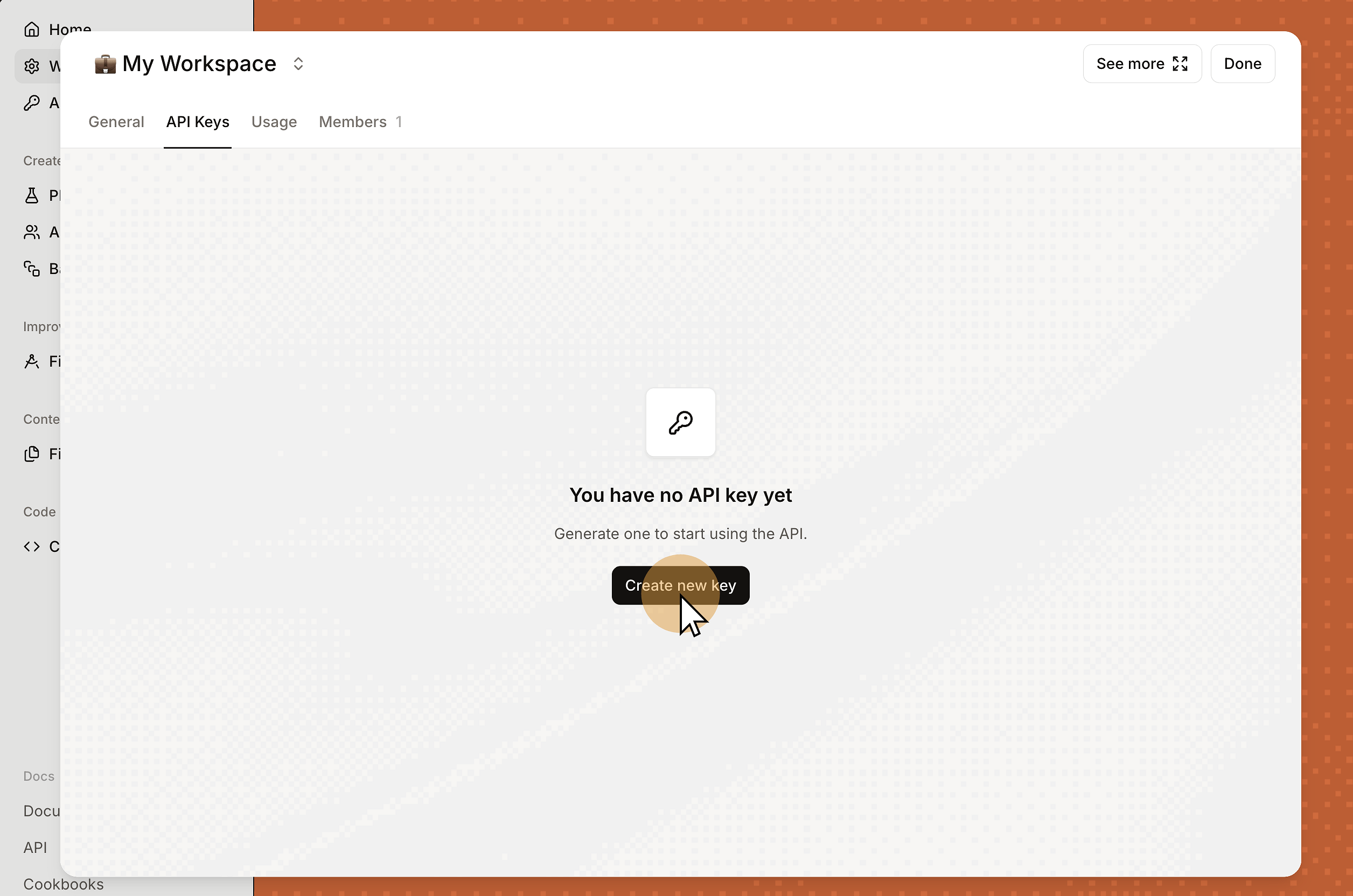
- Add a
Nameto identify the key (for example,First test key). - Set an
Expirationdate. Regular rotation improves security. - Choose a
Connector access scope:Shared connectors only: access only Connectors shared with the Workspace, not your private Connectors.Private and shared connectors: access both your private Connectors and the Connectors shared with the Workspace.
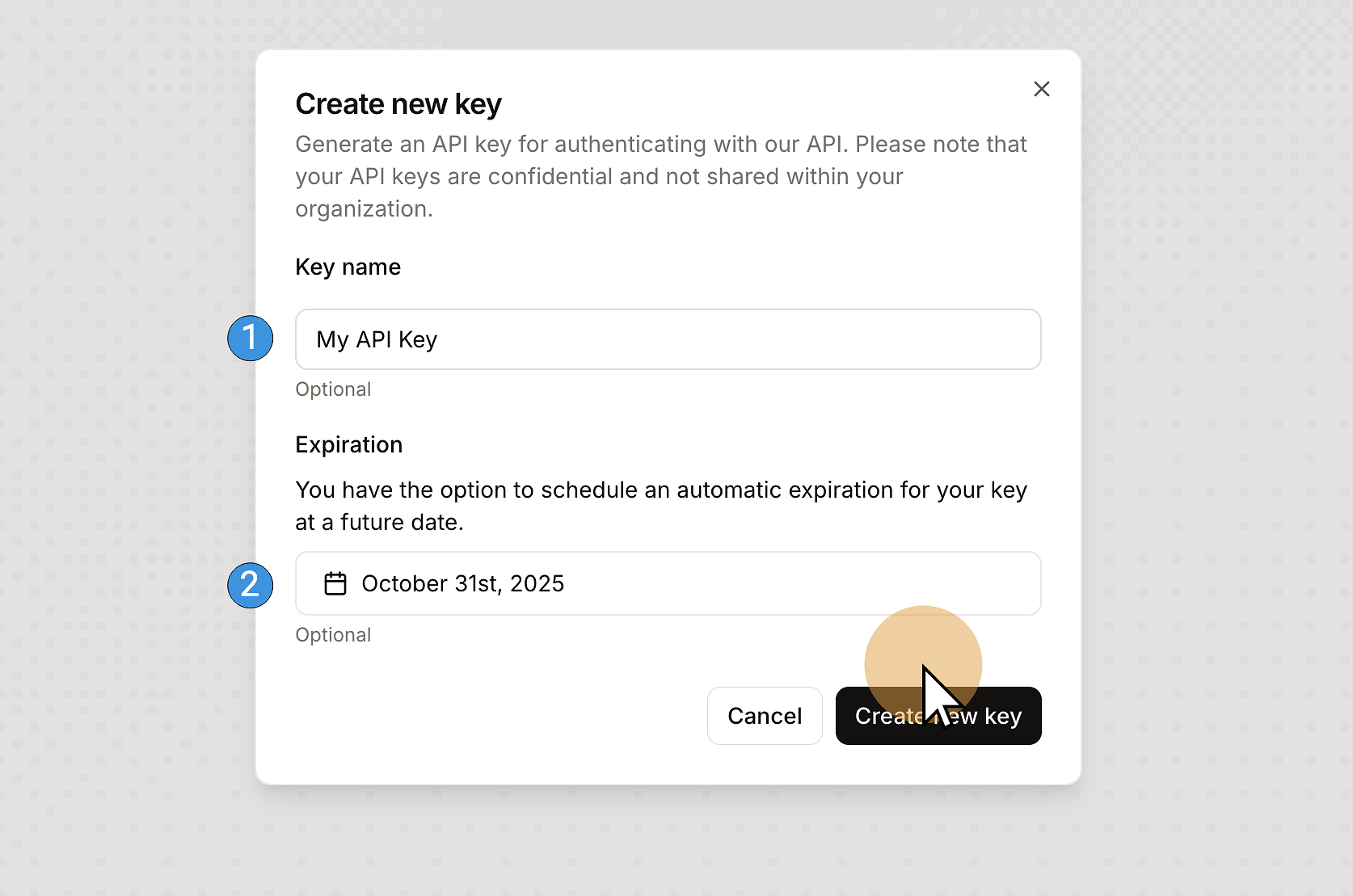
- Click
Create new key. - Copy the key immediately and store it in a secure location (password manager or secrets vault).
Warning
The full key appears only once. You cannot retrieve it after closing the confirmation dialog.
Verify
Verify
You have completed the setup:
- You are in Free mode with limited usage and rate limits.
- You have an API key stored securely.
Test the key with a quick curl request:
curl https://api.mistral.ai/v1/chat/completions \
  -H "Authorization: Bearer $MISTRAL_API_KEY" \
  -H "Content-Type: application/json" \
  -d '{
    "model": "mistral-small-latest",
    "messages": [{"role": "user", "content": "Hello, Mistral!"}]
}'A successful response confirms your key is working.
What's next