Sessions
A session is one run of the Vibe Code agent against a project: a sandbox provisioned for the task, the agent loop that does the work, and the branch or pull request it leaves behind. This page covers how sessions start, what happens inside, and what persists once they end.
How sessions start
A session begins from one of three entry points:
- From the web: click New session inside a project. See the Quickstart / Web.
- From the Vibe CLI: prefix a prompt with
&to send it to a cloud session. See the Quickstart / CLI. - By teleporting an active CLI session: run
/teleportinside the active local session. The session continues in the cloud from a summary of the conversation and your branch state, including uncommitted changes.
Teleport is the cleanest way to escape a local session that has become too long to run on your laptop. The cloud sandbox takes over from a summary of the conversation, on the same branch. See Teleport from CLI to web.
Once a session exists, the same lifecycle applies regardless of entry point.
Sandbox creation
When you create a session, Vibe Code Web provisions an isolated cloud sandbox for that run. The sandbox is single-tenant for the duration of the session: nothing from your other sessions or other users runs in it.
The sandbox has:
- A scoped shell.
- Access to the selected GitHub repositories (read and write, via your user access token).
- A network egress policy. See Sandbox environment.
The sandbox is deleted when the session ends.
This section describes the sandbox from the session's perspective. See Sandbox environment for what runs inside it and how it behaves.
Repository checkout
The agent clones the repositories selected for the project, on the branch you chose at session creation. A project can include one or more repositories, all from the same GitHub owner. The clone uses the Mistral GitHub App's user access token, so all subsequent Git operations (commits, branches, pushes) are attributed to you.
Agent loop
Inside the sandbox, the agent runs a loop:
- Read files relevant to your prompt.
- Plan the next action.
- Edit code or run a command (shell, tests, build).
- Report back to the session view (commands, file changes, intermediate output).
- Ask if it needs clarification, then wait for your reply.
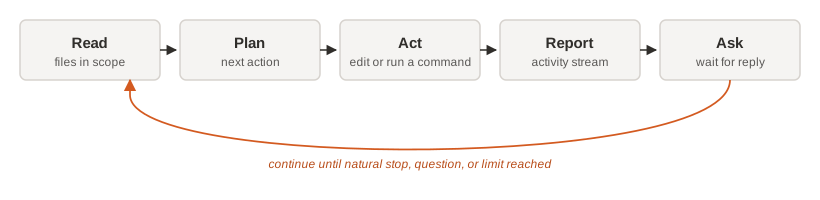
The loop continues until the task reaches a natural stopping point, the agent asks a question, or a limit is reached. See Limits and lifecycle for details.
What you see during a session
The session view shows:
| Element | What it shows |
|---|---|
| Activity stream | Commands the agent runs, with output, in chronological order. |
| File changes | The list of files the agent has touched during the session. |
| Branch state | The current branch the agent is committing to. |
| Pull request | Once the agent opens a pull request, a link to it in GitHub. |
| Prompt input | Where you reply to clarifying questions or send a follow-up. |
The activity stream is your audit log: every command and file change is visible while the session is alive.
Vibe Code Web helps you follow session progress and open the resulting branch or pull request. Detailed code review, comments, required checks, and merge decisions happen in GitHub.
Branch and pull request output
When the agent finishes, the result is materialized as:
- A branch on the target repository, with the agent's commits.
- A pull request opened against the base branch, with a description summarizing the work.
The pull request is yours to review, edit, merge, or close using your normal GitHub workflow. Branch protections, required reviews, CODEOWNERS rules, and required status checks apply.
Iteration after a pull request
A pushed pull request does not end the session automatically. You can send follow-up prompts while the session and sandbox are active:
- Send a follow-up prompt in the session view.
- Paste a reviewer comment and ask the agent to address it.
- Paste a failing CI output and ask the agent to fix it.
The agent reuses the same sandbox and branch, so context is preserved across iterations.
Once the sandbox is deprovisioned, the session cannot be resumed. To continue, start a new session.