---
title: Activate Studio and generate an API key
sidebar_label: Activate Studio and generate an API key
sidebar_position: 1
description: Generate your first API key in Studio in ~5 minutes.
---
# Activate Studio and generate an API key
Set up your Studio account and create an API key you can use to call Mistral models.
- **Free mode**: API access is enabled by default with no credit card required. Usage and rate limits apply.
- **Secure key management**: set expiration dates and rotate keys regularly
By the end you will have a working API key ready to use in your first request.
**Time to complete:** ~5 minutes
Prerequisites
- A Mistral account.
Step 1: Generate an API key
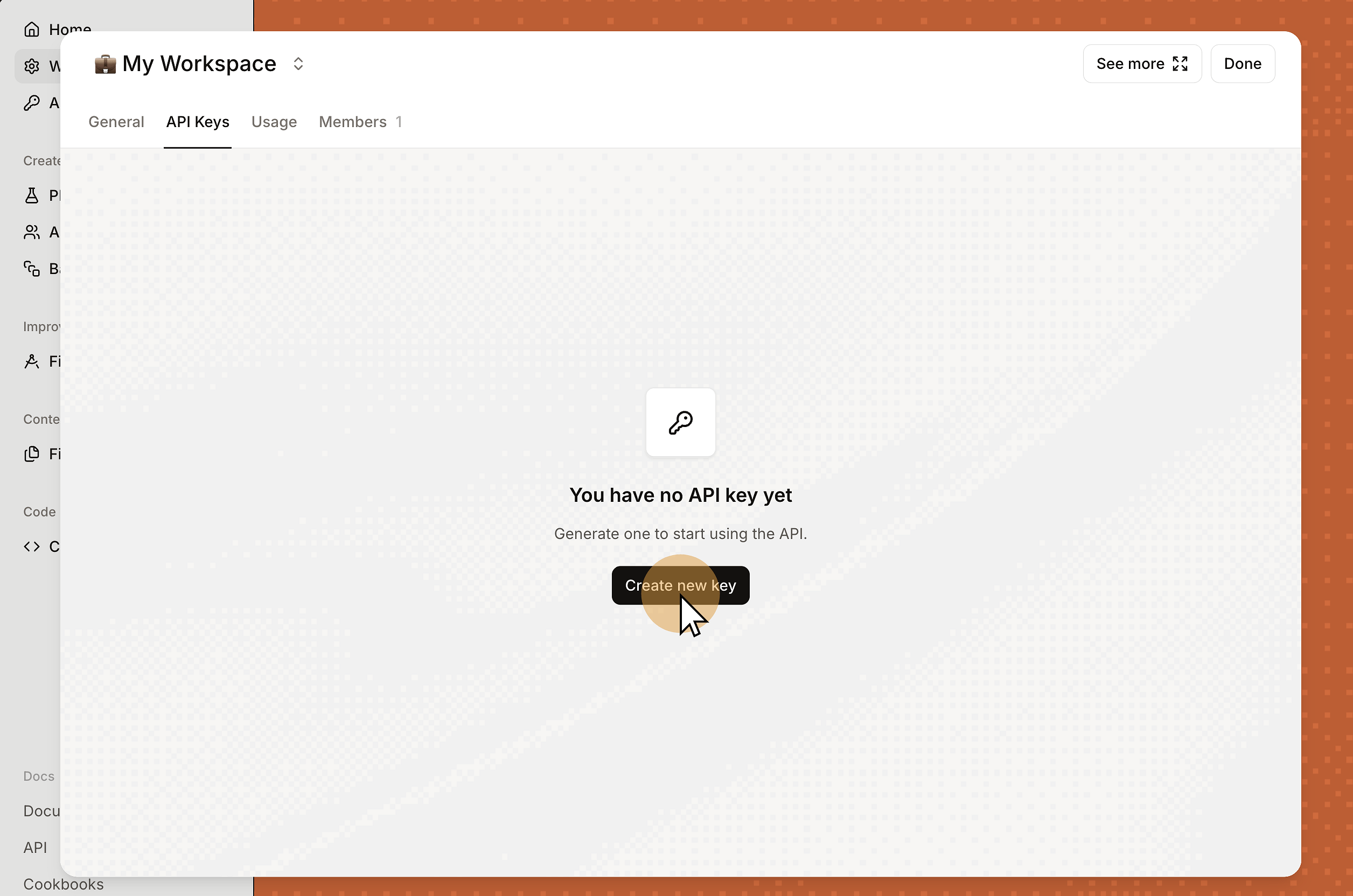
1. Open the Studio console.
2. Navigate to `API Keys` in the left sidebar.
3. Click `Create new key`.
1. Add a `Name` to identify the key (for example, `First test key`).
2. Set an `Expiration` date. Regular rotation improves security.
3. Choose a `Connector access scope`:
- `Shared connectors only`: access only Connectors shared with the Workspace, not your private Connectors.
- `Private and shared connectors`: access both your private Connectors and the Connectors shared with the Workspace.
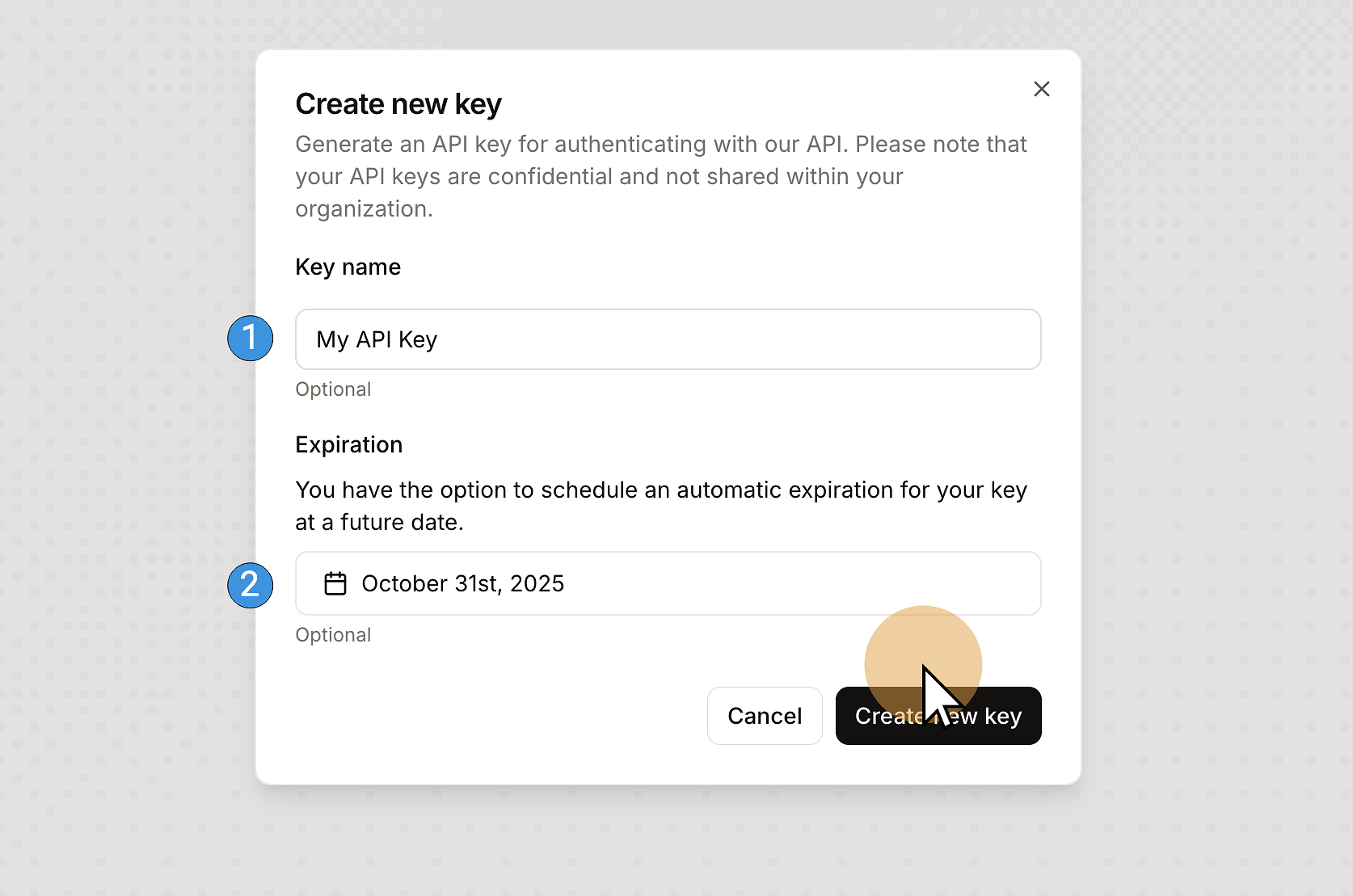
1. Click `Create new key`.
2. Copy the key immediately and store it in a secure location (password manager or secrets vault).
:::warning
The full key appears only once. You cannot retrieve it after closing the confirmation dialog.
:::
Verify
You have completed the setup:
1. You are in Free mode with limited usage and rate limits.
2. You have an API key stored securely.
Test the key with a quick `curl` request:
```bash
curl https://api.mistral.ai/v1/chat/completions \
-H "Authorization: Bearer $MISTRAL_API_KEY" \
-H "Content-Type: application/json" \
-d '{
"model": "mistral-small-latest",
"messages": [{"role": "user", "content": "Hello, Mistral!"}]
}'
```
A successful response confirms your key is working.
What's next